How to Start (P1)
This guide helps you set up Saner.ai so you can start organizing tasks, notes, emails, and schedules in one place
Written By Saner.AI
Last updated 9 months ago
Step-by-step written guide
Whether you’re just getting started or want to use it more efficiently, this breakdown will help you understand how you start using Saner.AI - your AI Personal Assistant.
Below is a video breakdown:
1. Start Your Day on the Home Screen
When you open Saner.AI, you’ll land on the Home screen. This is your AI-generated day plan.
Saner automatically scans everything you've synced - emails, tasks, notes, calendar - and lays out your day.
It highlights your urgent and high-priority tasks, and suggests a few quick wins to get momentum
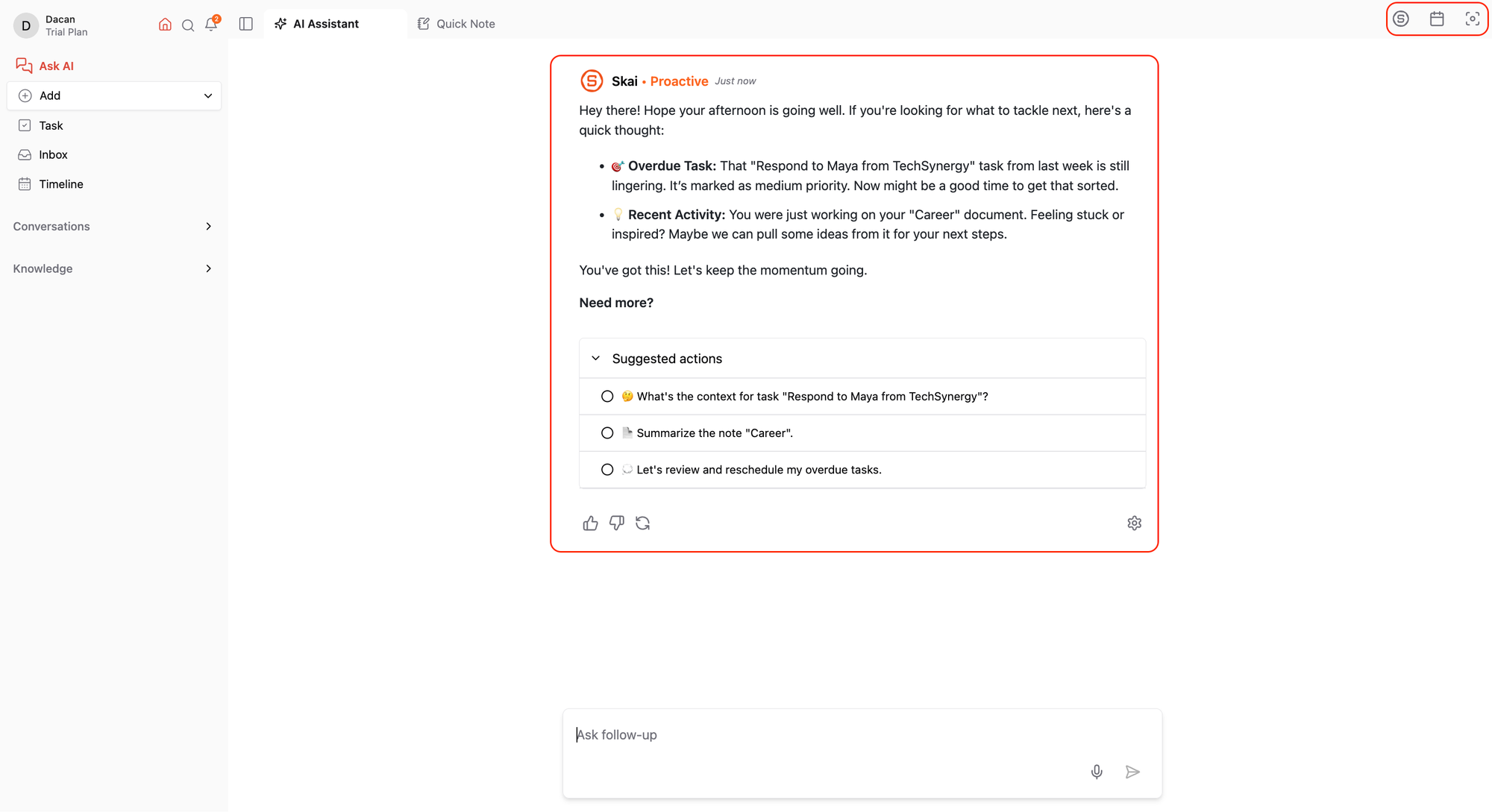
On the top right corner, you’ll see three key buttons:
AI Side Panel: Open this to chat with Saner and ask for help.
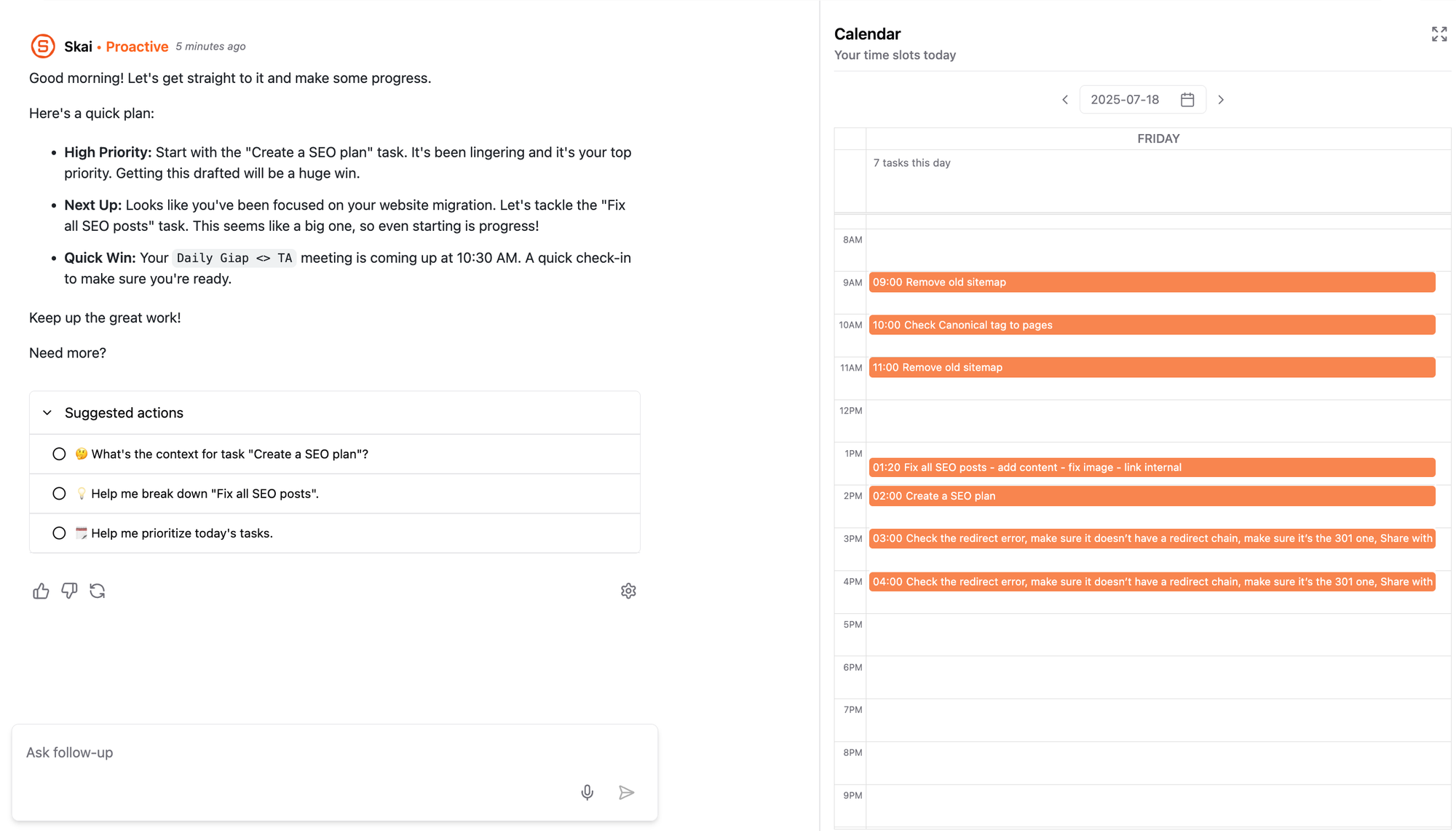
Calendar View: Shows all tasks and events scheduled for a specific time.
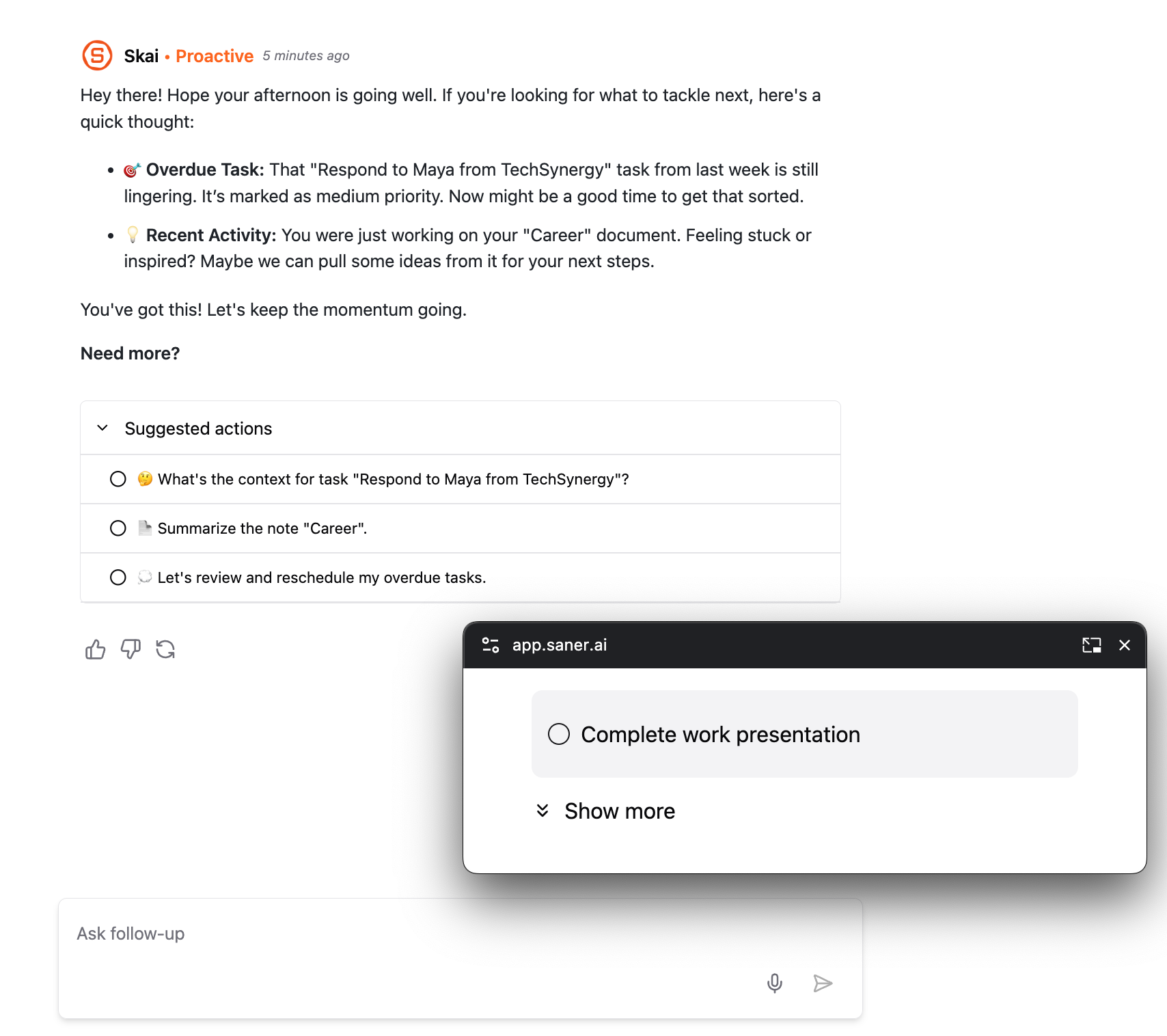
Focus Box: Your zone for tasks you want to zero in on.
Optional: Turn on the floating pop-up viewer to follow you across tabs, or switch to full-screen mode when you're ready for deep work.
2. Add or Connect Your Information
Add New Notes or Tasks
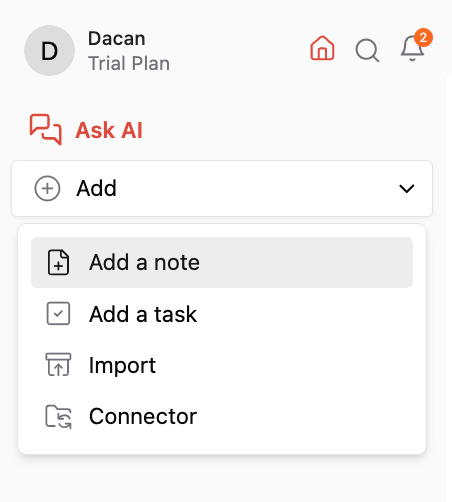
Click the Add button
Choose to create a note or a task
Start typing
Import Your Files
Choose a folder to store your imports
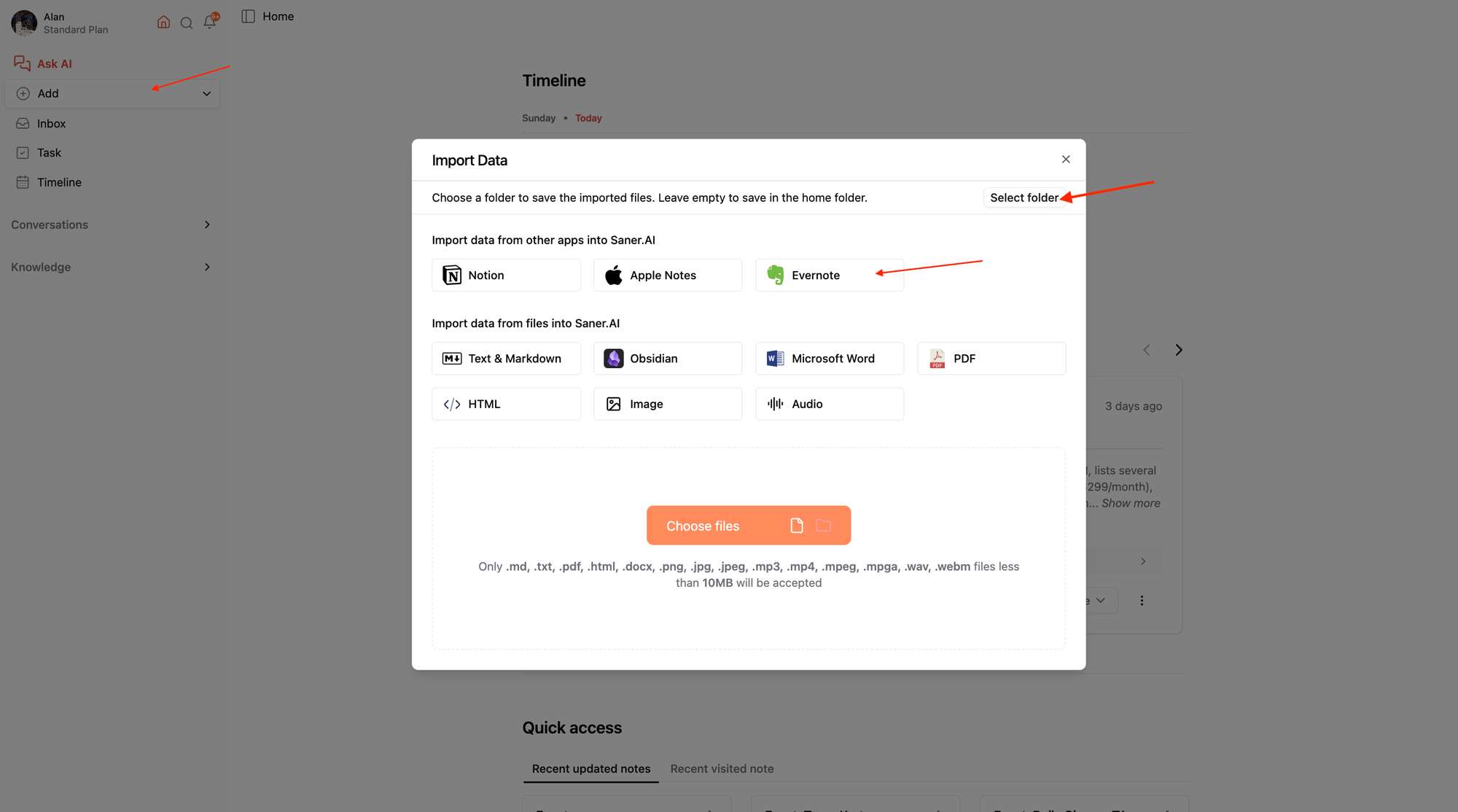
Select the files and click Import
Done! They’ll appear in the Knowledge section and become searchable
3. Sync with Google Services (Connectors)
1️⃣ Google Drive
Click the Add button
Go to Connectors
Click the Drive icon
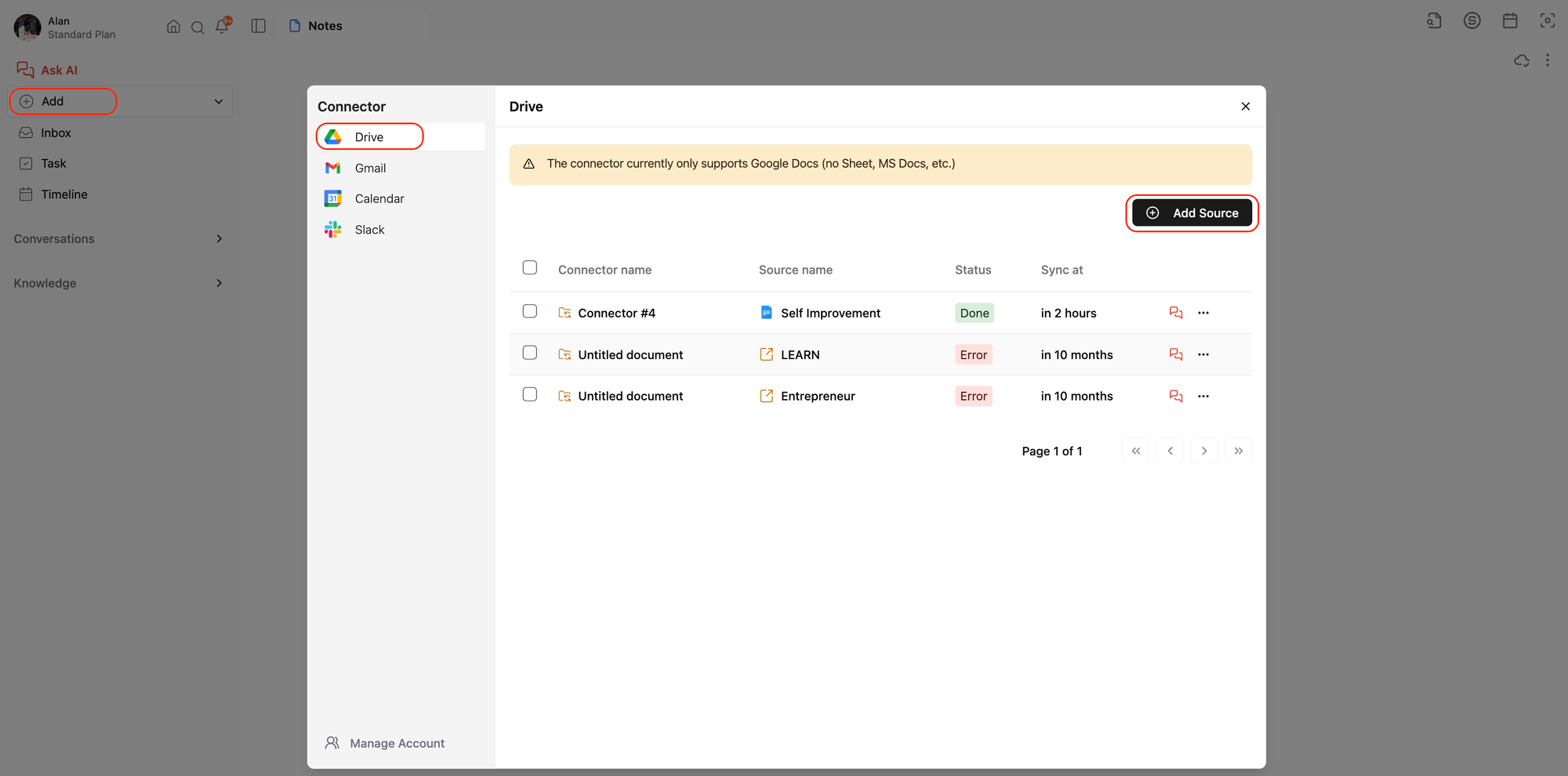
Hit Connect Source
Pick your Google account
Choose which folders to sync
💡 Tip: You should connect folders you want to search or ask questions about later.
2️⃣ Connect Gmail
Click the Gmail icon and then Add Source
Choose the account
Apply filters like:
Label
Date range
Read status, starred, etc.
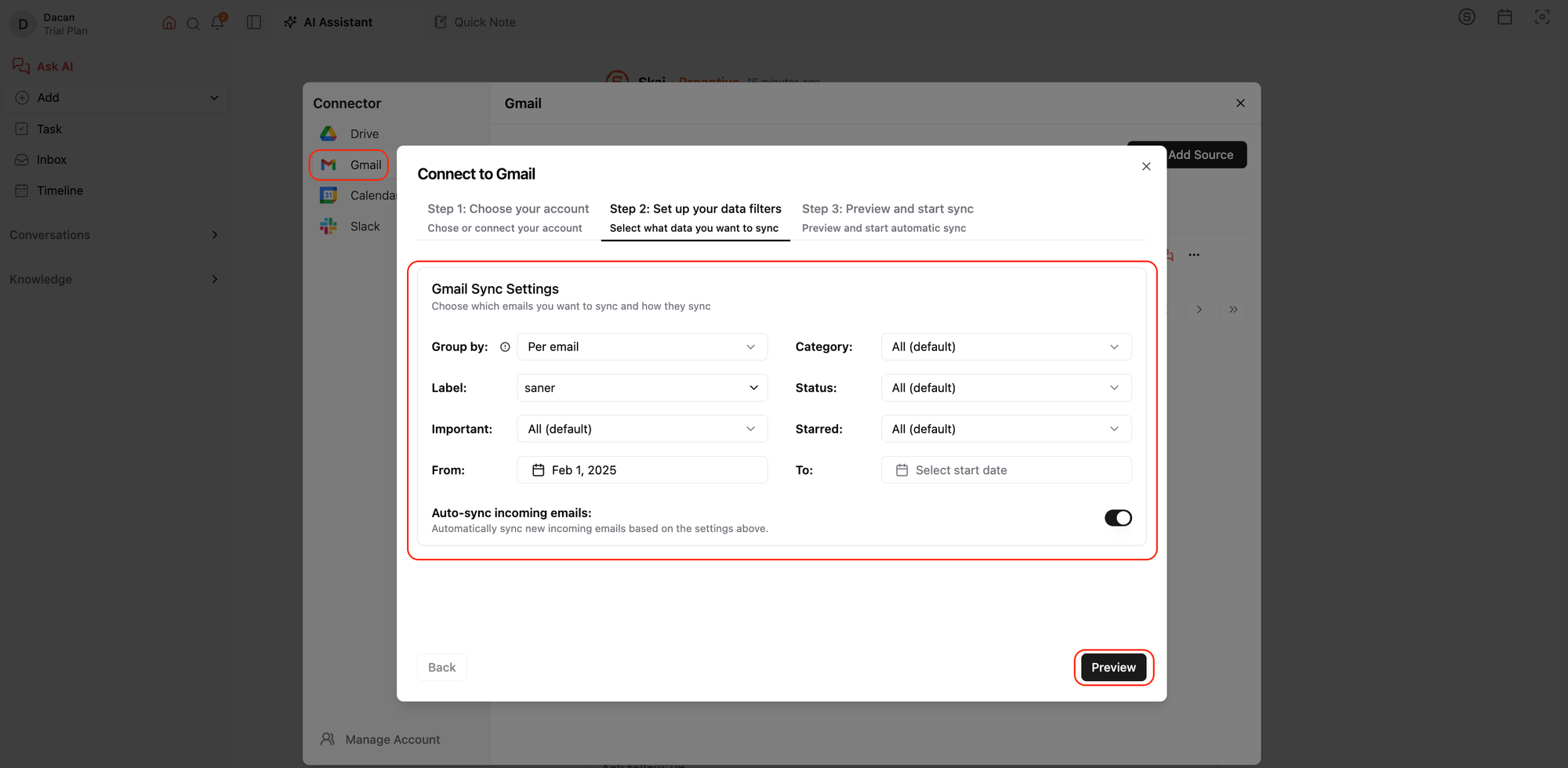
Turn on Auto-sync
Click Preview, then Sync Now
💡 Tip: You should sync important emails you want to process to Saner. I do that by only syncing emails with the Important label
Your synced emails will appear in the Connector folder within Saner.
3️⃣ Connect Google Calendar
To bring events into Saner:
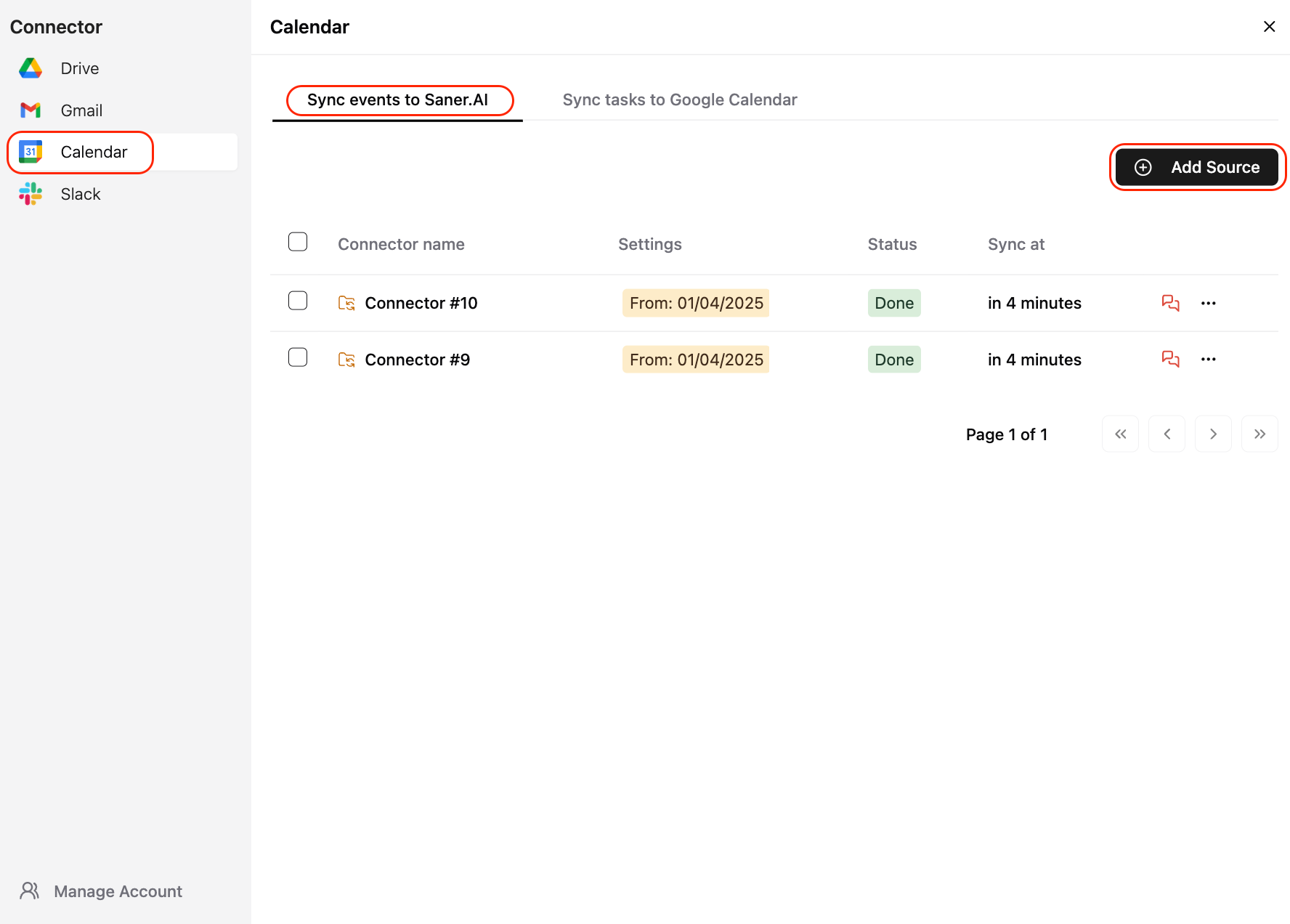
Click Add Source under Calendar
Select your account
Choose calendars and a date range to sync
To push Saner tasks onto Google Calendar:
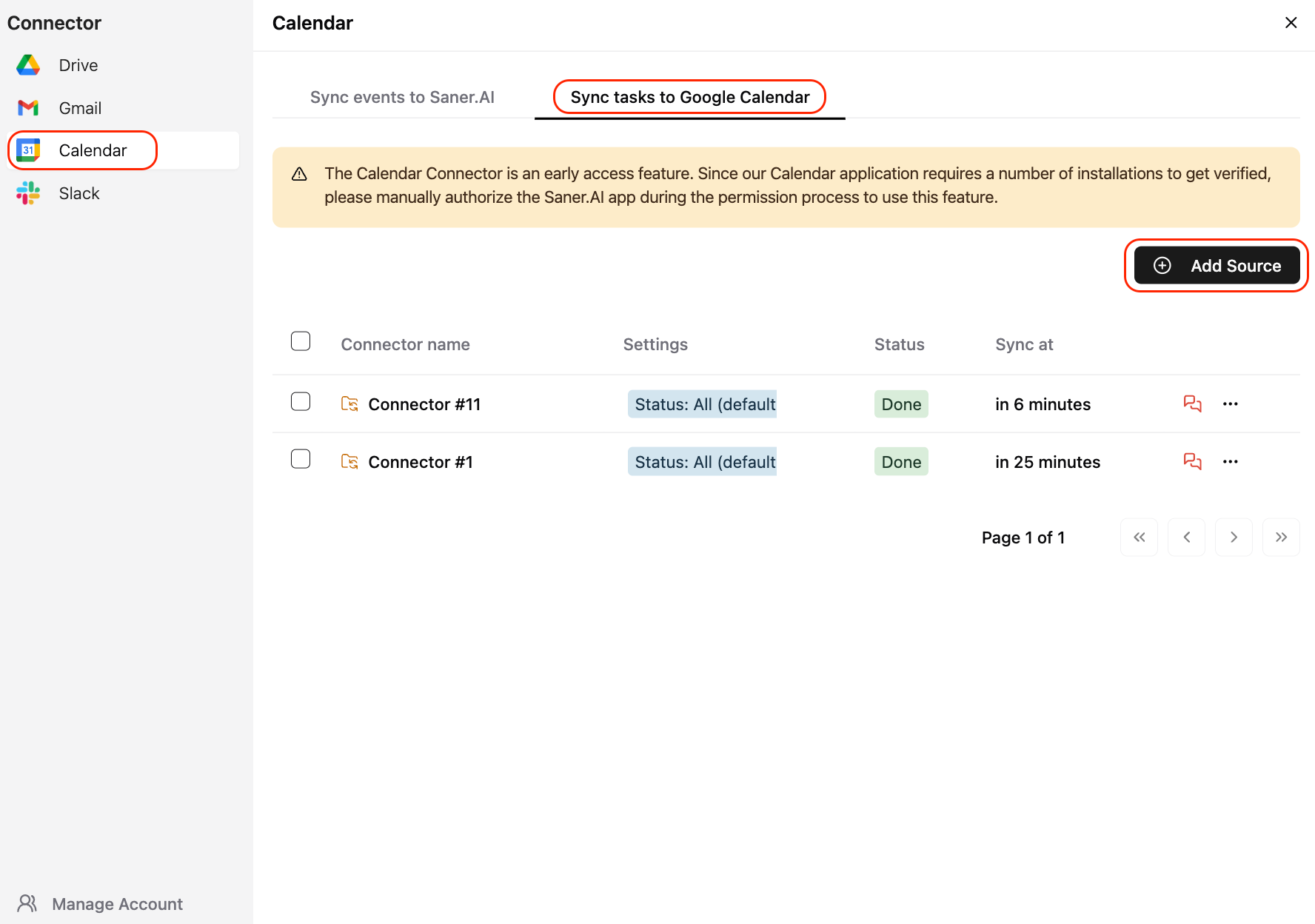
Click Sync to Google Calendar
Choose your account
Filter tasks by folder, date, or completion status
Turn on Auto-sync and optionally delete outdated tasks
Click Preview, then Sync Now
Was this helpful?
Still need help? Share an idea