Task Page
This explains how to use the Task Page on Saner.AI
Written By Saner.AI
Last updated 9 months ago
The Task Management feature in Saner.AI helps you manage all your tasks in one intelligent, centralized place. You’ll find it on the Task in the left sidebar.

What You Can Do With Tasks
Each task can include: Title, Due date, Duration, Priority level, Linked note

Task Sections
When you open the Task page, tasks are grouped into three sections:
Overdue: Tasks with due dates in the past.
Today: Tasks planned for the current day.
Others: Future tasks or tasks without a due date.
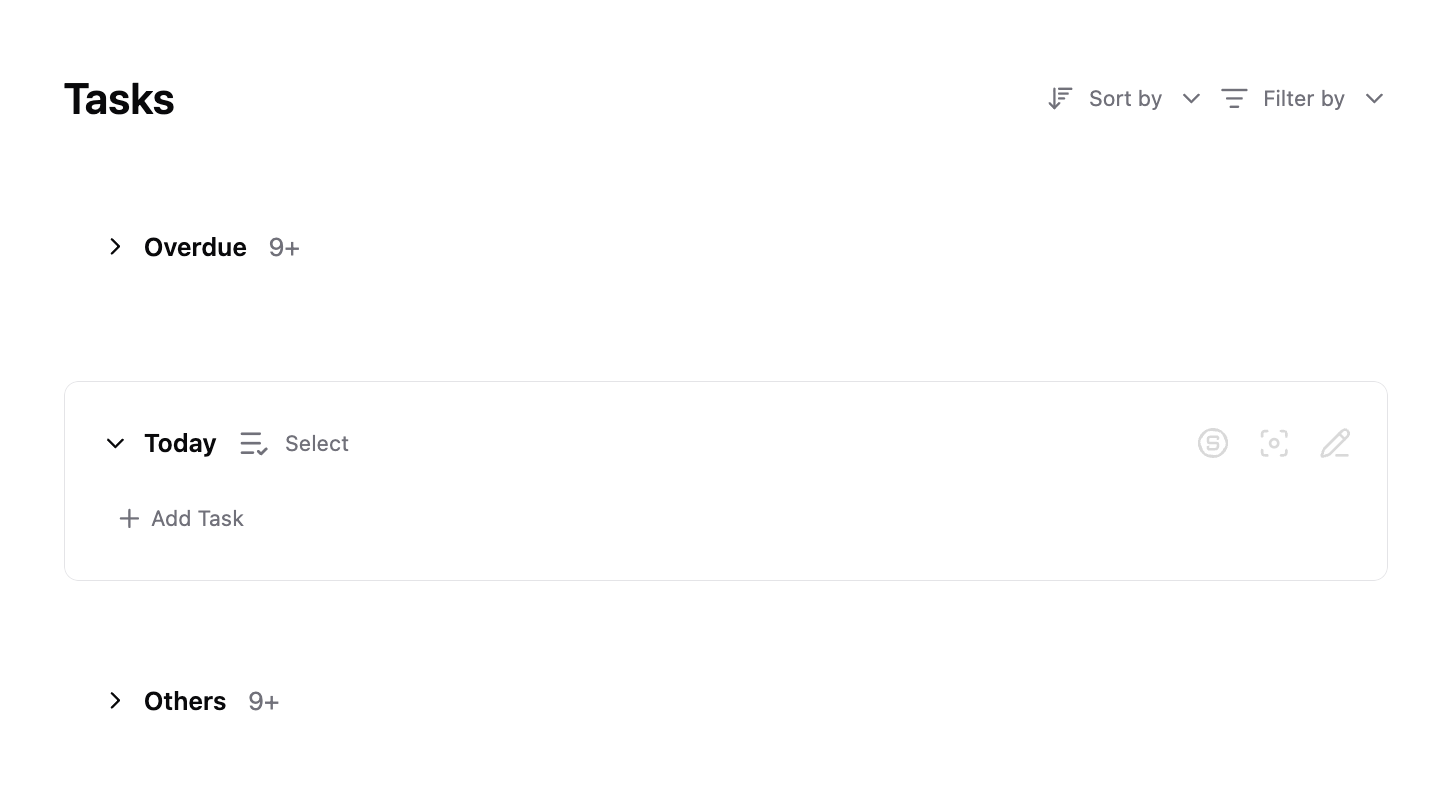
This layout helps you quickly see what needs attention now versus later.
How to Create a Task
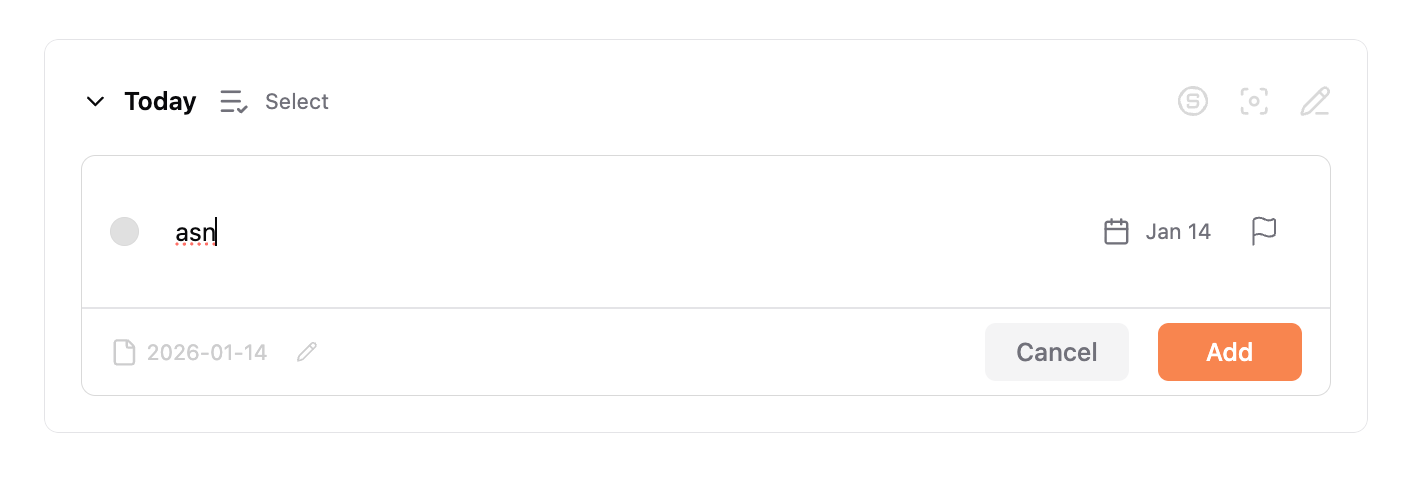
Click the “+” button.
Type your task
The task is created.
By default, the task is linked to a note, so you can add details or context
Editing and Adding Context to Tasks
Click on any task. From there, you can:
Set or change the due date and time
Make the task repeat
Mark it as high priority
Update the linked note
To change the linked note:
Click the pencil icon
Choose a different note
Click Update to save your changes.
Editing Multiple Tasks at Once
You can manage several tasks together:
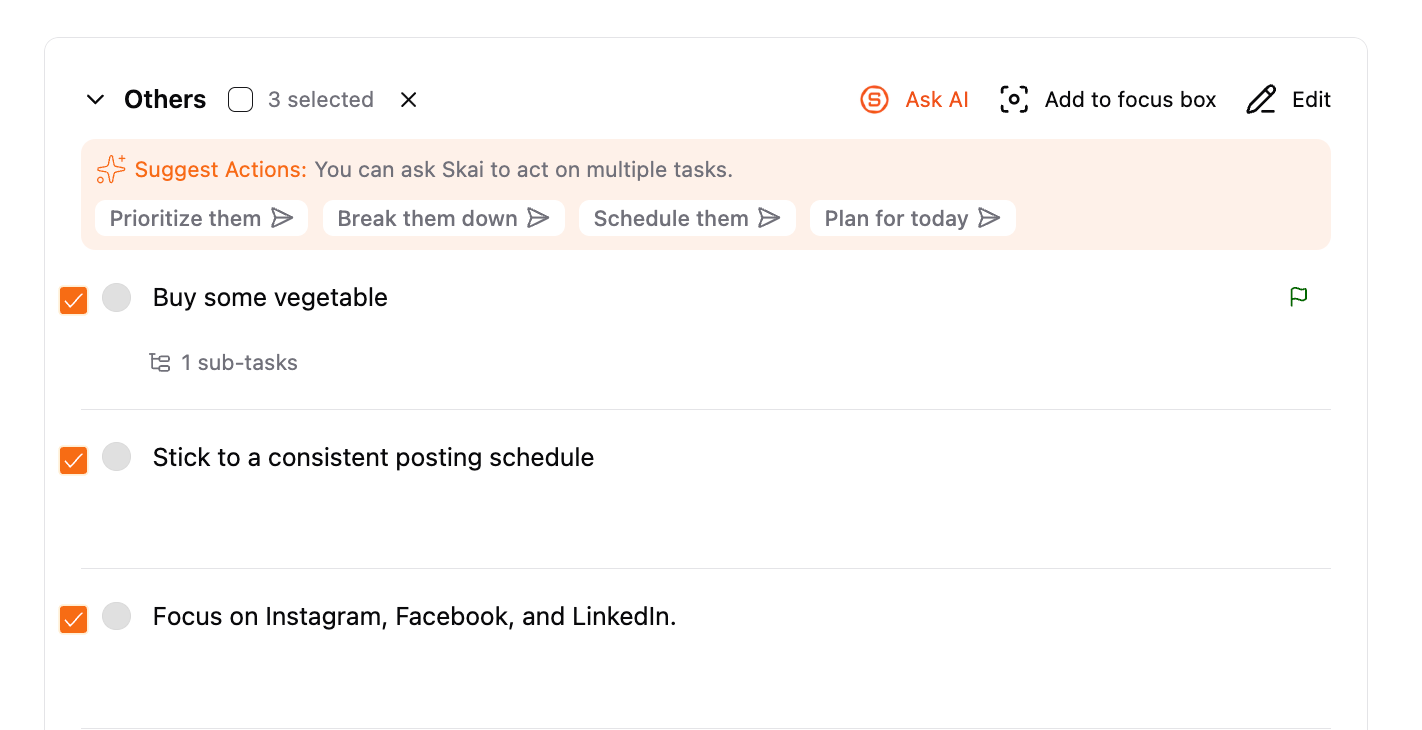
Click Select at the top of a section (Overdue, Today, or Others).
Click individual tasks to select multiple items.
Once selected, options appear at the top of the section for the bulk actions
Quick AI Actions
Prioritize tasks
Break tasks down
Schedule tasks
Plan tasks specifically for today
Ask AI
Skai responds using only the selected tasks.
Add to Focus Box
Edit
Set due dates, priority, source, completion status, or delete all selected tasks at once.

Tasks and Your Calendar
Any task with a due date automatically appears in your Calendar view. This gives you a complete picture of the upcoming work

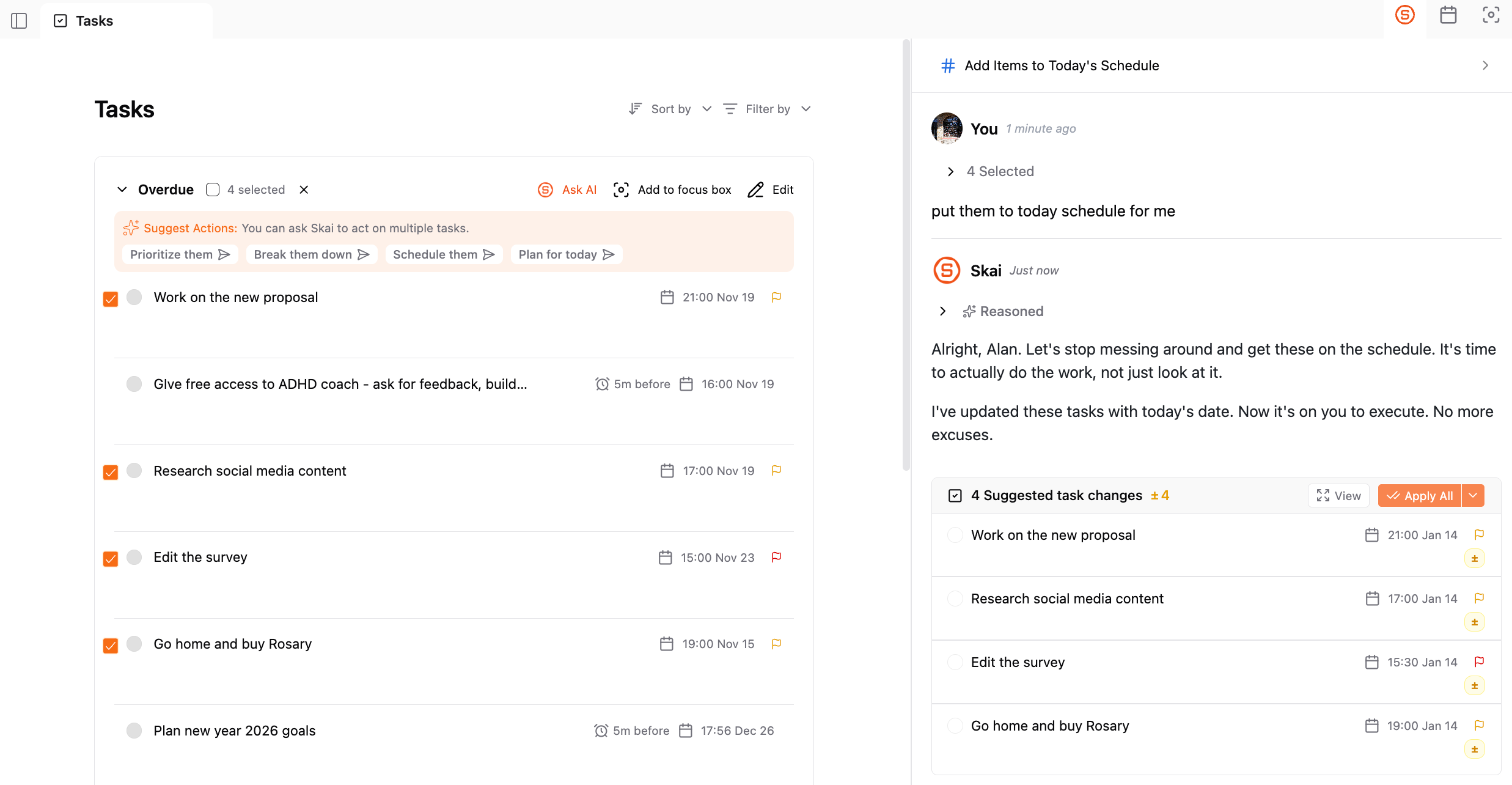
Managing Overdue Tasks With AI
If you have many overdue tasks:
Click Select
Choose the tasks you want
Click Ask AI
You can give instructions like:
“Prioritize these tasks”
“Schedule them for today”
“Plan my day around these”
Skai reorganizes your tasks based on your request.
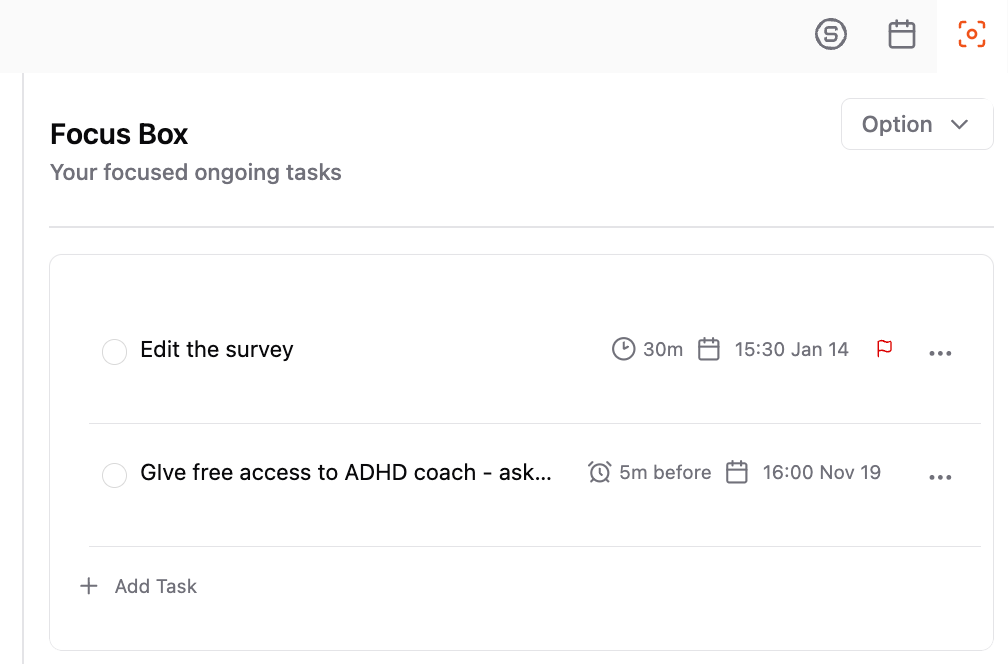
Focus Box
The Focus Box helps you keep your most important tasks visible at all times.
To open it:
Click the Focus Box icon in the top-right corner
Drag tasks into it, or add them using the three-dot menu on a task
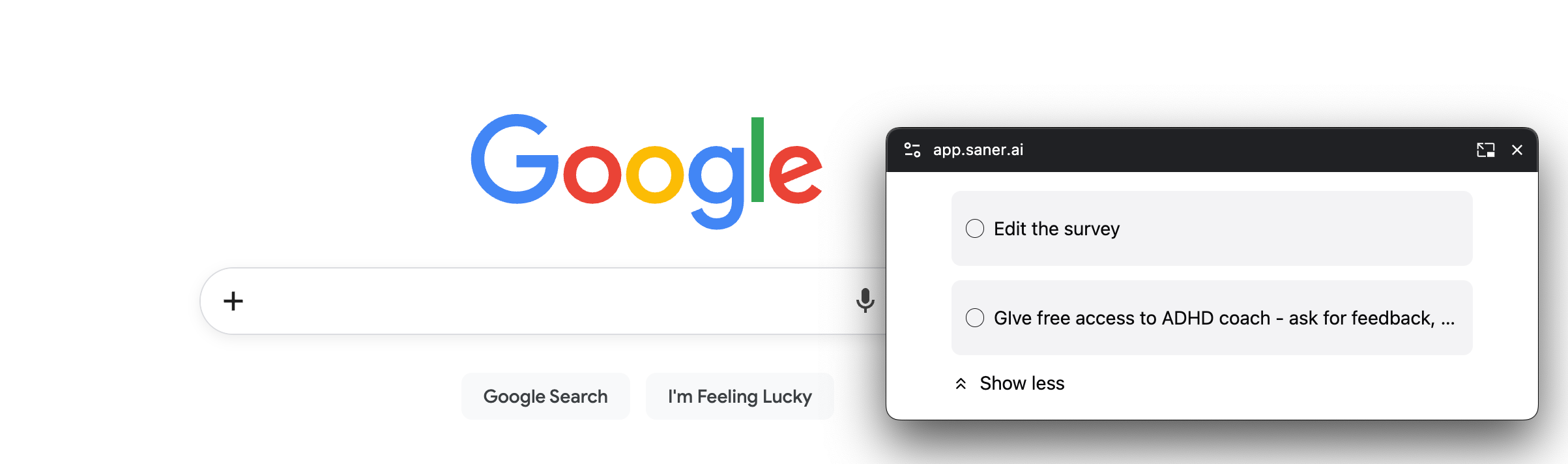
If you open the Focus Box on the Pop-up view, it appears as a floating pop-up and stays with you - even while browsing the web - so you never lose sight of what matters most.
Filtering Tasks
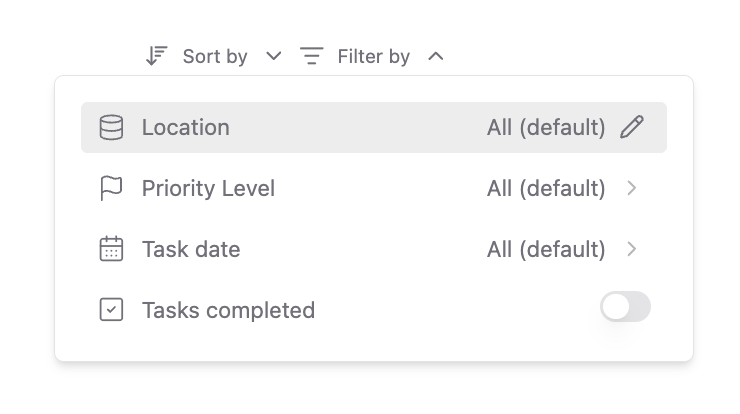
For full control, you can filter tasks by: Note location, Priority level, Completion status by opening the Filter button in the top-right corner of the Tasks page.
Was this helpful?
Still need help? Share an idea